Integration guide
Connect Relay to Zapier
Send every Relay call into the 7,000+ apps Zapier connects to, spreadsheets, CRMs, email, SMS, Slack, project boards, and more. No code required.

What you'll need
- An active Relay subscription (any paid plan)
- A Zapier account, free plans work for testing (create one here)
- About 5 minutes
Set up the connection
Create an API key in Relay
Your API key is how Zapier proves it's allowed to read calls from your account. Treat it like a password, anyone who has it can read your call data.
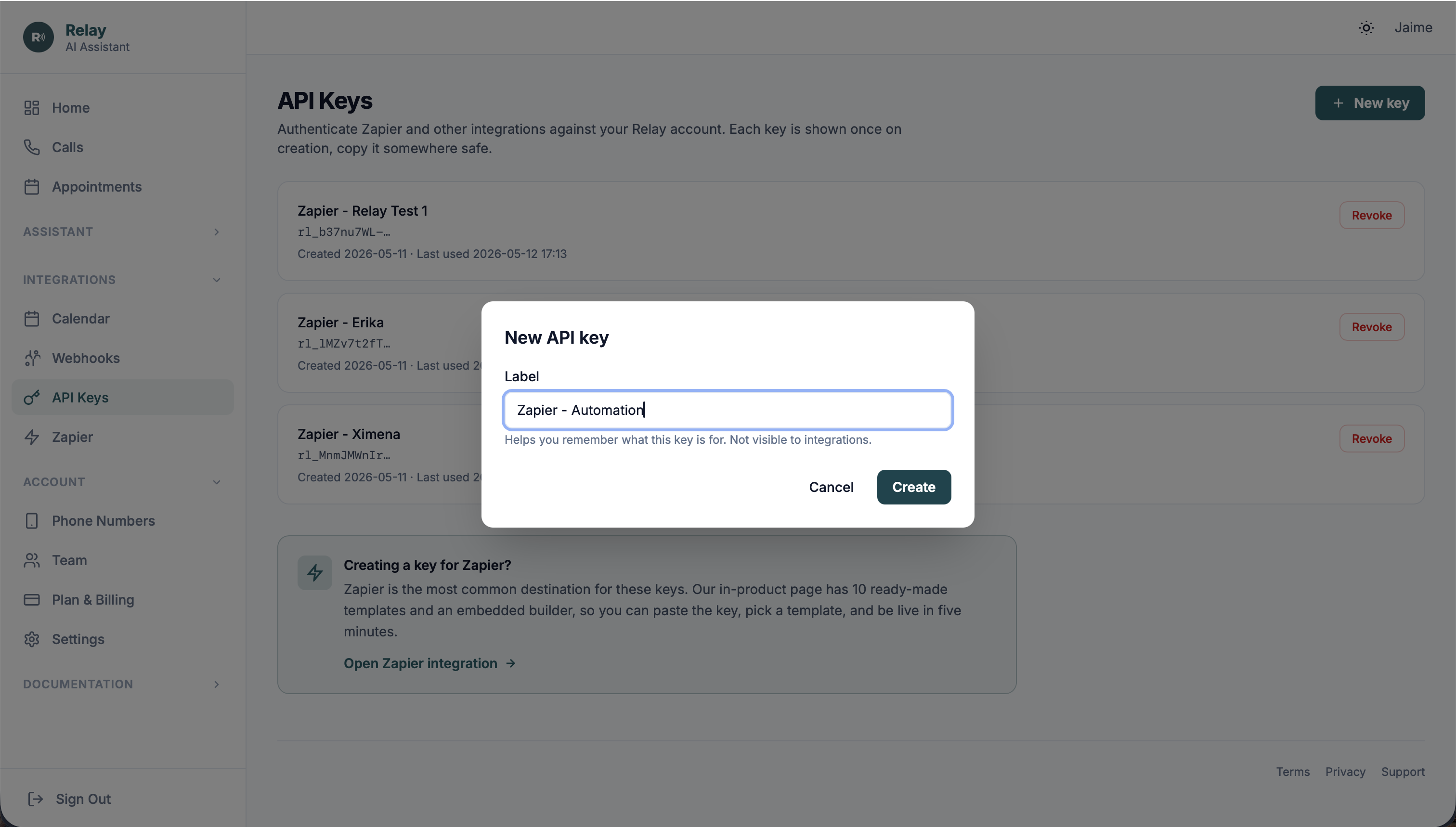
- Open Dashboard → API Keys
- Click New key
- Label it something memorable, for example,
Zapier, production - Click Create, Relay will show your key once
- Copy it. Keep it in a safe place (a password manager works well). You won't be able to see it again, but you can always create a new one.
Keys start with rl_ followed by a long random string.
Find Relay in Zapier
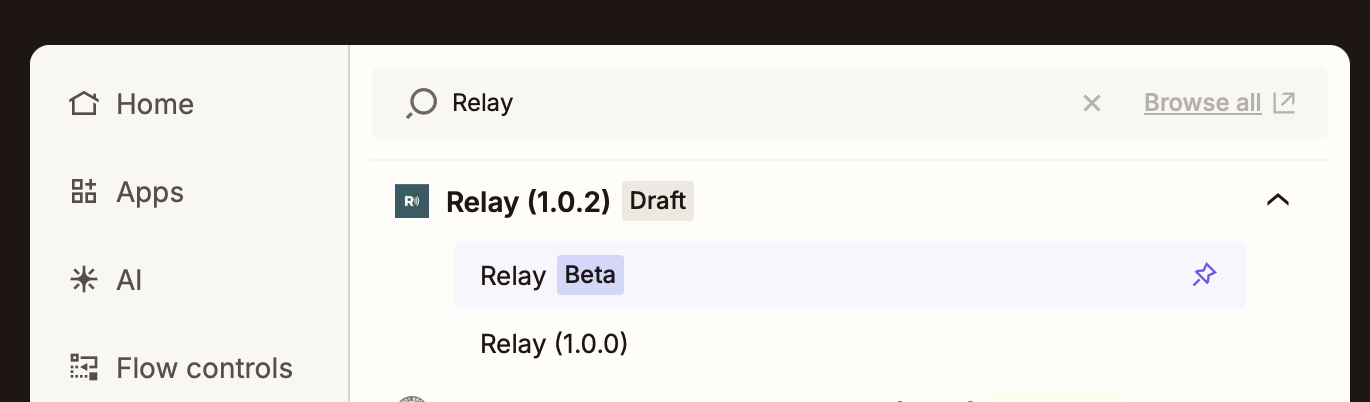
Inside Zapier, start building a new Zap. When prompted for a trigger app, search for Relay.
Pick the Relay app with the teal microphone icon, that's us.
Connect your Relay account
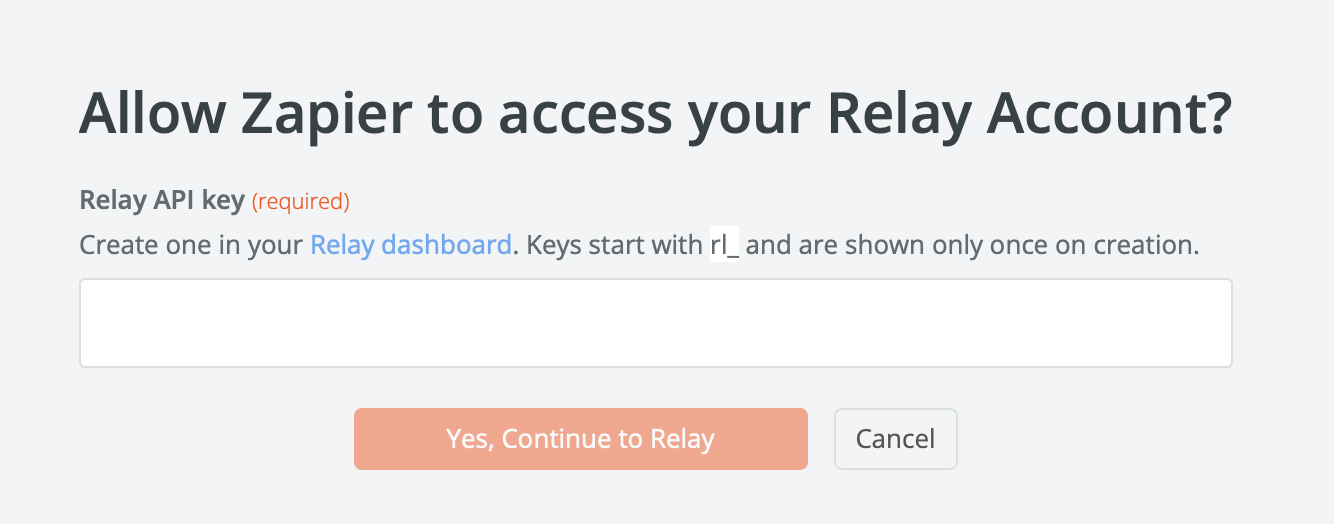
Zapier will ask you to Sign in to Relay. A small window will pop up asking for your API key, paste the key from Step 1 and click Yes, Continue.
Zapier will verify the key against your account. If it works, you'll see your business name listed in Zapier, connection successful. You only do this once per Zapier account; future Zaps will reuse the same connection.
Pick a trigger and finish your Zap
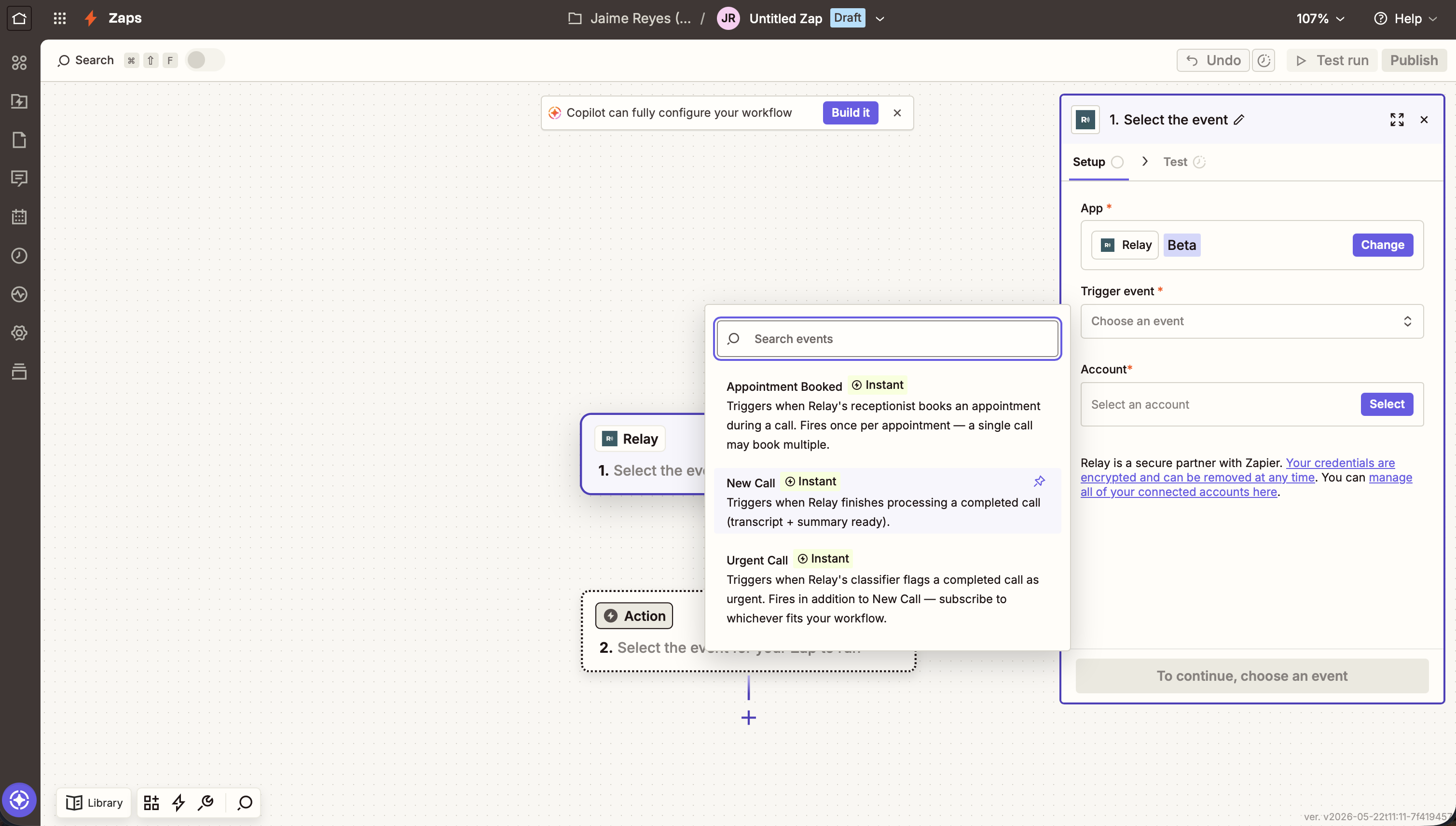
Choose one of Relay's three triggers (covered in detail below): New Call, Urgent Call, or Appointment Booked. Then add whatever action you like, Zapier supports thousands of apps.
Test the Zap from inside Zapier (it'll send a sample payload), turn it on, and you're done. The next real call that fits your trigger will fire your Zap automatically.
The three triggers
A trigger is the event that fires your Zap. Pick the one that matches what you want to automate. You can build as many Zaps as your plan allows, mixing and matching triggers.
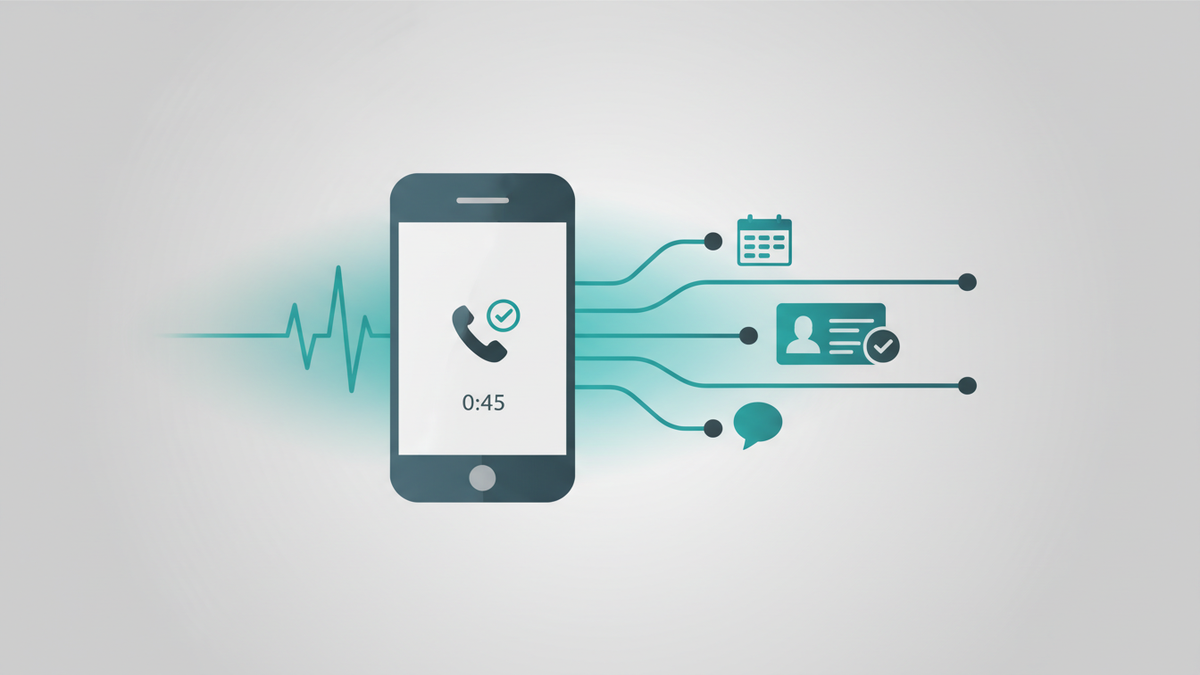
New Call
Fires after every completed call Relay handles, receptionist mode, assistant mode, demo calls, the lot. The Zap runs once the call has been transcribed and the call summary is ready (usually within 30–60 seconds of the caller hanging up).
What you get in each Zap step
Caller phone number, caller name (when known), the number they dialed, call duration, call summary, urgency rating (normal / urgent), mode (receptionist / assistant / demo), a link to the transcript, and any appointments that were booked during the call.
Try it for…
- Log every call to a Google Sheet, one row per call, perfect for end-of-week review
- Create a contact in your CRM, HubSpot, Pipedrive, Salesforce, Airtable, you name it
- Post a summary to a team Slack channel, everyone sees what came in without checking the dashboard
- Send a follow-up email via Gmail or Outlook with the call summary pre-filled
- Create a Trello / Asana / Notion task to follow up on the call
Tip. If you only want some calls (say, only the urgent ones) to fire a Zap, use the Urgent Call trigger below, it's narrower and saves you from filtering inside Zapier.
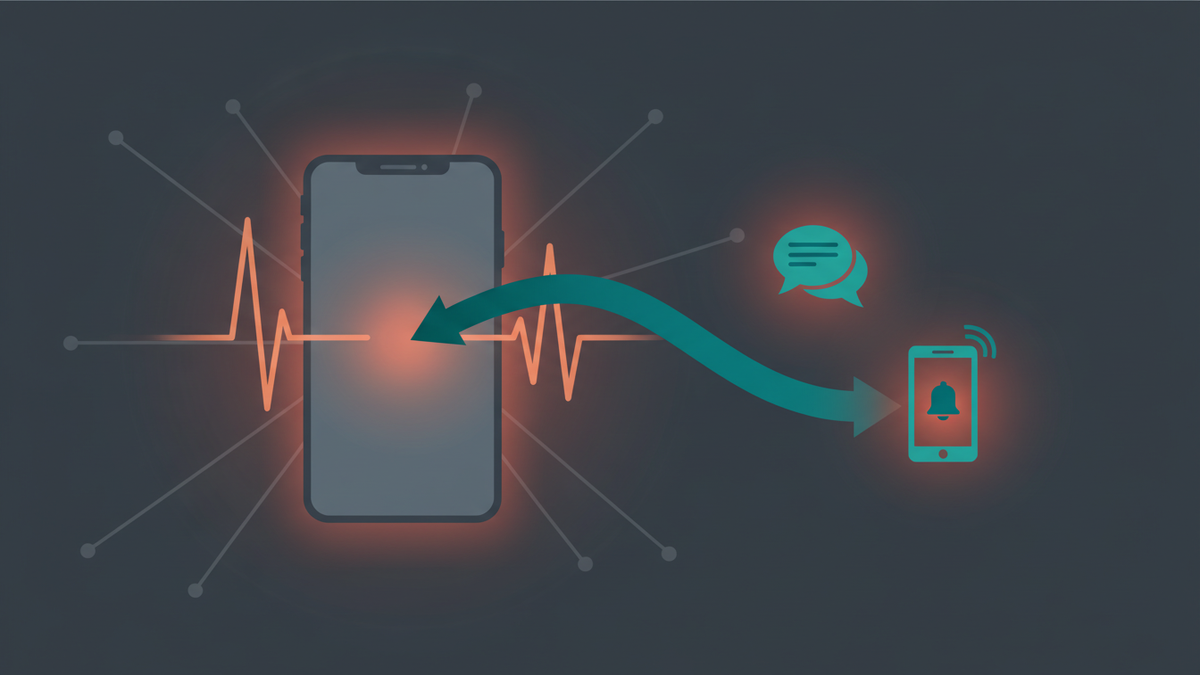
Urgent Call
Same shape as New Call, but fires only when Relay's AI flags the call as urgent, emergencies, time-sensitive requests, frustrated callers, anything that needs your attention right now. The classifier reads the transcript and the caller's tone; you don't need to configure it.
What you get
Identical to New Call, same fields, same caller details, same summary. The difference is purely when the Zap fires: only on calls flagged urgent.
Try it for…
- Text yourself instantly via Twilio SMS or RingCentral, be in the loop in seconds
- Page on-call staff via PagerDuty or Opsgenie
- Post to a dedicated #urgent Slack channel with @here so nobody misses it
- Create a high-priority CRM task due in the next 30 minutes
- Send a WhatsApp / Telegram message straight to your phone
Tip. You can run both New Call (logging to a sheet) and Urgent Call (pinging your phone) as two separate Zaps. They don't conflict, urgent calls just fire both.

Appointment Booked
Fires when Relay books an appointment on your behalf during a call. (Requires Google Calendar connected in Dashboard → Calendar; if a single call books multiple appointments, the trigger fires once per appointment.)
What you get
Appointment start and end time, time zone, caller name, caller phone, the stated purpose of the appointment, and the original call's identifier so you can cross-reference.
Try it for…
- Mirror the booking into a different calendar (Outlook, Apple, your team's shared cal)
- Create a contact + appointment in your CRM (HubSpot, Pipedrive)
- Send a confirmation SMS to the caller via Twilio with the date and time
- Add the caller to a CRM list for an automated reminder sequence the day before
- Block the slot in scheduling software like Calendly or Acuity to prevent double-booking
Tip. Relay already sends the caller a confirmation email if they offered one on the call. Use this Zap for things Relay doesn't do, like adding to your CRM or sending an SMS reminder.
Handling empty fields
A few payload fields are intentionally empty when no value is available, keeping them present with empty values means your Zap's schema is the same on every call, but you still need to plan for the empty case if you map them to required inputs (like an email subject).
Which fields can be empty?
callerName, empty string when the caller's number has no CNAM lookup result or caller ID was withheldendReason, empty string when the call ended unexpectedlyredirect,nullwhen call-redirect isn't configured or wasn't usedappointmentsBooked, empty array[]when no appointment was booked on the callpurpose(onappointment.booked), empty string when the caller didn't state one
Always-present fields you can rely on: sid, caller, calledLine, duration, startedAt, endedAt, summary, urgency, mode, transcriptUrl.
Three ways to handle empties
1. Concatenate with a non-empty field
Map both fields back-to-back. Zapier substitutes empty values as empty strings, so the non-empty one always shows.
Call from {{callerName}} {{caller}}
Result: "Call from John Smith +12125551234" or just "Call from +12125551234".
2. Zapier's built-in default modifier
Append |default:"Your fallback" to any field
mapping in Zapier's input editor.
{{callerName|default:"unknown caller"}}
Result: "John Smith" or "unknown caller". Works on any string field.
3. Formatter → Default Value step
Drop in a Formatter step between the trigger and your action: Text → Default Value. Cleaner when several fields need the same treatment.
Formatter steps don't count against your Zapier task quota until they actually run. Use this for anything more complex than a single substitution.
Common questions
How many Zaps can I create?
Depends on your plan: Solo up to 5 active Zaps, Team up to 20, Business up to 50. Disabling a Zap inside Zapier frees up a slot immediately.
What happens if Zapier is down or my Zap fails?
Relay will retry the delivery up to 5 times over 24 hours with exponential backoff. You can see the delivery history (and a Retry now button) for any Zap on Dashboard → Webhooks. Zaps installed via Zapier show up there with a small Zapier badge.
Where do I go for help with a specific Zap?
Zapier's support team owns Zap configuration issues, picking the right trigger, mapping fields, figuring out why a Zap isn't firing on the Zapier side. Open a Zapier help ticket and they'll route to us if the issue turns out to be on Relay's side. For Relay-specific questions (API key behavior, plan limits, delivery retries), the rest of this guide and Dashboard → Webhooks are the right starting points.
I revoked an API key, what happens to my existing Zaps?
They stop firing immediately. Any Zaps tied to that key will appear paused in Zapier. To bring them back, create a new API key, then go into each affected Zap and reconnect using the new key.
Can I send call data somewhere Zapier doesn't support?
Yes, use a direct webhook instead of Zapier. Relay posts the same payload directly to any URL you configure on Dashboard → Webhooks. The full reference is in the Webhook Reference.
Is my call data safe?
Every Zapier-bound delivery is signed with a per-Zap secret so Zapier can verify the request came from Relay. The API key authenticates Zapier to us on the other direction. You can revoke either at any time from the dashboard. We never share call data with anyone other than the destinations you wire up.
Ready to get started?
Grab an API key, hop into Zapier, and build your first Zap. Most users have something useful firing in under 10 minutes.