Feature guide
Live appointment booking with Google Calendar
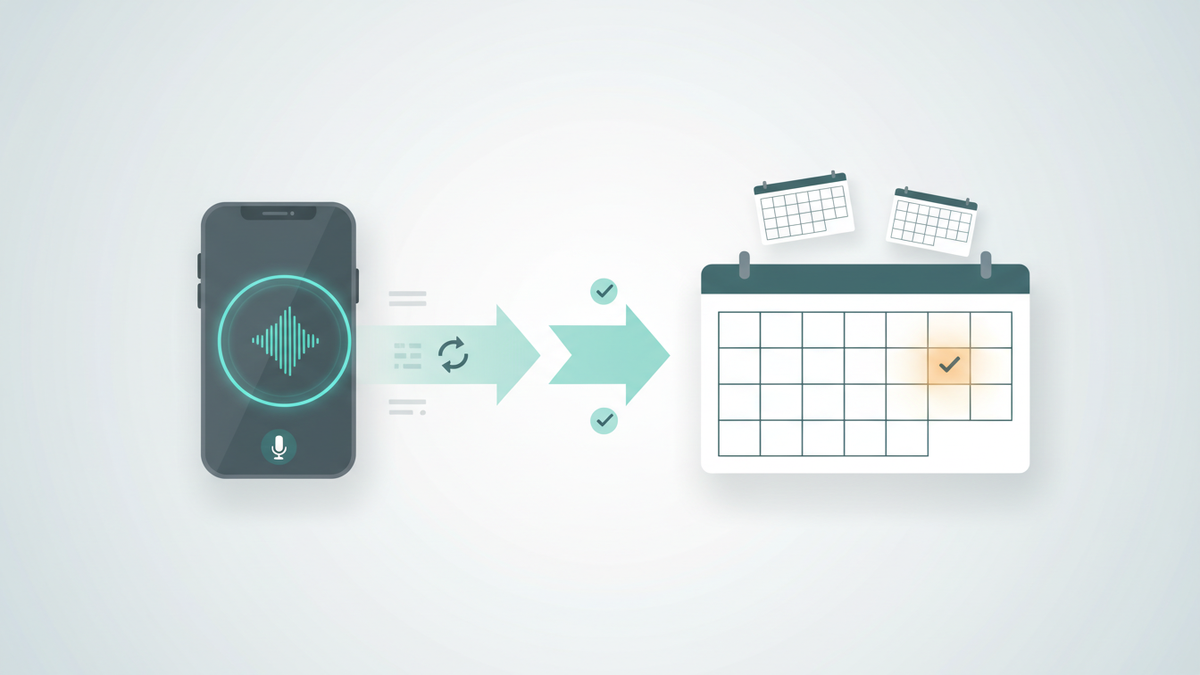
Let Relay schedule appointments for your business in real time, on the call. Relay checks availability against your team's calendars, books the right person on the right calendar, and confirms the time with the caller before they hang up. No callbacks, no double-bookings, no manual entry.
Available on Team and Business
Calendar booking requires the Team plan ($149/mo, up to 3 resources) or Business plan ($299/mo, up to 50 resources). Solo callers can still capture scheduling requests through Relay's message-taking + integrations path. Calendar booking is only available with Google Calendar today; other providers (workaround section) flow through Zapier or webhooks.
How it works
Once you connect Google Calendar and configure one or more resources (staff members, rooms, services), Relay does this on every incoming call automatically:
- Hears the booking intent, the caller says "I'd like to book a haircut" or "Can I see Dr. Smith next Tuesday?"
- Checks availability in real time against the relevant resource's Google Calendar (plus your primary calendar, so personal commitments block too).
- Offers slots conversationally, "I have Tuesday at 10, noon, or 3, does one of those work?"
- Books the slot on the right resource's calendar, with the caller's details and purpose attached to the event.
- Confirms with the caller verbally, asks if they'd like an email confirmation, and sends it if so.
- Pushes the booking to your CRM through Zapier or any custom webhook you've configured.
The "resource" model
A resource is anything that has independent availability, typically a staff member, but it can also be a room, a chair, a service, or a piece of equipment. Each resource gets its own dedicated Google Calendar so two resources' bookings never cross-block each other.
Examples of how to model your team:
Solo professional
One resource: you. Set your bookable hours, default appointment length, and buffer time. Done. Every call books on your single dedicated calendar.
Two-person consultancy
Two resources: Alice and Bob, each on their own calendar with their own
working hours. Alice handles strategy calls (services: strategy);
Bob handles technical consults (services: technical).
When a caller asks for "a technical session", Relay routes to Bob's availability automatically.
Salon with three stylists
Three resources, Maria (cuts + color), Carlos (cuts only), Tracy (color + treatments). Each has different working days. A caller asking for "a color appointment" gets routed to either Maria or Tracy, whoever has the soonest opening. A caller asking specifically for Carlos books only Carlos's calendar.
Resource = room (not a person)
A photo studio with two shooting bays can model each bay as a resource. Same plumbing: each "Studio A" and "Studio B" booking lands on its own calendar, no double-booking.
How to set it up
Configuration lives at Dashboard → Integrations → Calendar. About five minutes for the first setup.
Connect your Google account
Click Connect Google Calendar and authorize Relay. We request only two
scopes: calendar.app.created (lets Relay create
and manage calendars it owns, Relay can't see or touch your other calendars) and
calendar.freebusy (lets Relay check your primary
calendar for busy times so personal commitments block bookings).
Set tenant defaults
Under Tenant Defaults, configure the company-wide booking rules: time zone, default appointment length (e.g. 30 minutes), buffer between bookings (e.g. 15 minutes), and the days/hours your business is generally bookable. These apply to any resource that doesn't set its own override.
Add your resources
Under Bookable Resources, click Add resource for each staff member, room, or service you want to book against. Give each one:
- Name, the caller-facing name (e.g. "Maria", "Studio A").
- Services, optional, comma-separated tags (e.g.
haircut, color). Relay uses these to route by service when a caller doesn't name a specific person. - Working hours override, optional. Use this for staff who work different days than the tenant default (e.g. Bob only Tue/Thu).
- Duration / buffer override, optional. Useful if one resource has longer appointments than the rest.
Adding a resource provisions a new dedicated Google Calendar in your account named Relay, {Name}. Renaming the resource later renames the calendar to match.
(Optional) Bind resources to phone lines
If you have multiple phone numbers, head to Phone Numbers and open each one. Under the line's Receptionist Mode overrides you'll find a Bookable resources on this line checkbox grid. Tick the resources this line should serve. Leave everything unchecked for the line to use any active resource. This same binding drives which appointments Assistant Mode mentions when the owner calls that line.
A booking call, end to end
Once configured, here's what a real call sounds like. (Caller is in italics.)
Relay: "Thank you for calling Sandy Brook Salon, how can I help?"
Caller: "Hi, I'd like to book a haircut with Maria for next Wednesday."
Relay: (checks Maria's calendar) "I have Wednesday at 10, 1, or 3:30, does one of those work?"
Caller: "1 works."
Relay: "Great, can I get your name and phone number?"
Caller: "Jane Doe, 512-555-0142."
Relay: (books Wednesday 1pm on Maria's calendar) "You're confirmed for Wednesday at 1 with Maria. Would you like an email confirmation?"
Caller: "Yes, jane@example.com."
Relay: "Sent. You'll get an email at jane@example.com confirming the details. Anything else?"
The event lands on Maria's Google Calendar with Jane's name, phone, and email in the description. If you've configured Zapier or webhooks, they fire too.
Cancellations and reschedules
If a caller calls back to cancel or move an appointment, Relay handles it on the line:
- Looks up the appointment by the caller's phone number first.
- Falls back to an alternate phone, name+date, or email if the first lookup is empty.
- Reads the booking back to the caller for confirmation.
- Cancels the Google Calendar event and sends a cancellation email if one is on file.
- For a reschedule: cancels the old one, then walks through the booking flow again.
You can also cancel any appointment from the Appointments dashboard , that path sends a cancellation email to the caller too if their email was captured during booking.
Assistant Mode knows your calendar too
When you (the business owner) call your own Relay number from a trusted phone, Relay switches into Assistant Mode. With Calendar connected, it now greets you with what's on your slate:
"Hey Maria, you've got two appointments today, first one at 10 with Jane Doe for a haircut. How can I help?"
Scope is controlled by the same per-line resource binding above:
- If line A is bound to Maria's resource, calling line A shows Maria's appointments.
- If line A has no specific binding, Relay shows all upcoming appointments across resources.
- The greeting only volunteers today's bookings. The next 7 days are loaded too, but you have to ask ("anything coming up Thursday?").
What if I don't use Google Calendar?
Native real-time booking, where Relay holds the slot mid-call and confirms it before the caller hangs up, is Google Calendar only today. Other providers (Microsoft 365, Apple Calendar, Calendly, etc.) are on the roadmap based on demand. In the meantime there are two solid paths:
Path A, Connect Google, view bookings elsewhere
Many users keep their personal calendar in Outlook or iCloud but happily set up a Google account just for business bookings. Connect it to Relay, then add the resource calendar URLs to your daily-driver calendar app as subscriptions (every major calendar supports subscribing to a Google iCal feed). Bookings live on Google but you see them in whichever app you check every day. No double entry; no compromise.
Path B, Don't book, just capture the request
If you'd rather not connect any calendar, leave Calendar disconnected. Relay's receptionist will still recognize when a caller wants to schedule something, it captures their preferred date/time, name, callback number, and email, then routes the request through your normal call summary email, Zapier triggers, or custom webhooks. You (or a Zap) then confirms the time and creates the actual event in whichever calendar you use. The caller hears "someone will reach out to confirm a time" rather than "you're booked", honest about the asynchronous handoff.
TL;DR, connect Google for real-time booking, or skip it and use the messaging + integrations story for asynchronous handoff.
Plan limits and specifics
| Plan | Calendar booking | Max resources |
|---|---|---|
| Solo | Not included, request capture via integrations | 0 |
| Team | Live booking with up to 3 resources | 3 |
| Business | Live booking + smart routing across the team | 50 |